Rahmat / Admin dashboard
Rahmat dashboard guides.
The admin dashboard: adding staff and registering them in the Telegram bot, withdrawing tips to an Uzcard or Humo card, wallet types, payments and cancelling a payment.
01 / Staff
Adding
a new employee.
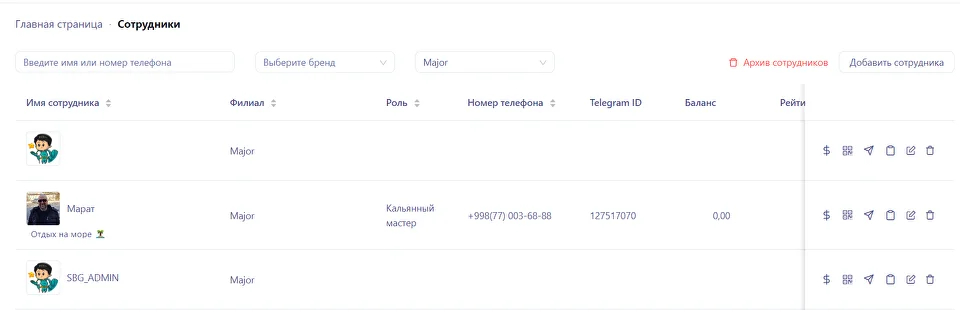
Employees are added in the Staff section of the dashboard. After that, the employee receives an SMS with a link to the Telegram bot.
 01
Open the Staff section
Click “Add employee” in the top right corner.
 02
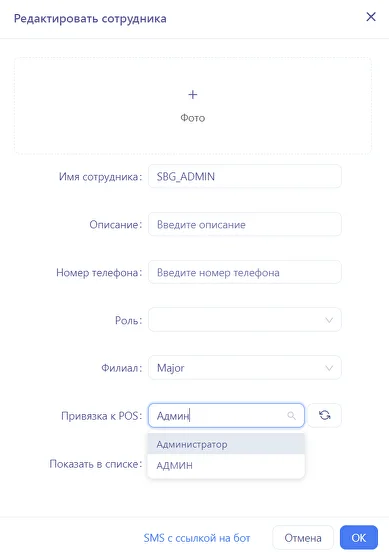
Fill in the employee details
In the “Add employee” window, enter the employee’s name (in Cyrillic), phone number, a role from the list and the branch. Once the branch is chosen, an “Employee” field appears: use the search to select the right person. Then turn on “Show in list” and click “OK”.
 03
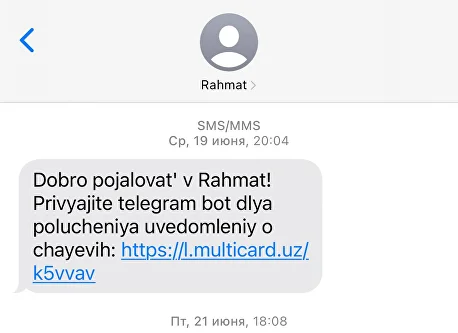
Send the SMS with the bot link
Click the paper-plane icon in the employee’s row. The employee receives an SMS with a link to register in the Telegram bot.
Registration in the Telegram bot
The employee follows the link in the SMS and registers in the bot. In the bot, the waiter receives notifications about payments and tips. Tips are withdrawn through the bot: the waiter enters a card number and withdraws any available amount.
02 / Withdrawing to a card
Withdrawing tips to
an Uzcard or Humo card.
The employee checks the balance and withdraws money in the Telegram bot. The card must be Uzcard or Humo.
 01
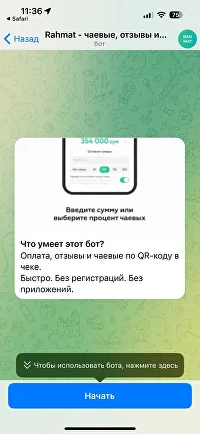
Tap Start
The employee follows the SMS link to the bot and registers by tapping Start.
 02
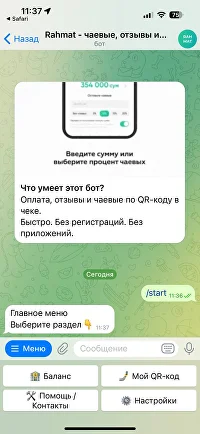
Open Balance
Tap Balance in the bot’s main menu.
 03
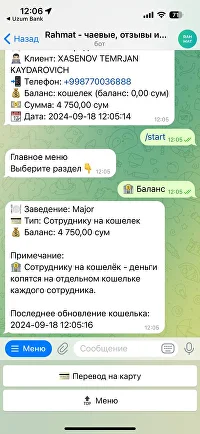
Check the balance
The bot replies with the balance details.
 04
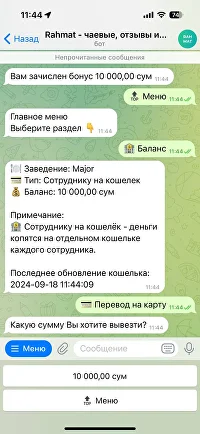
Tap Transfer to card
To withdraw money, tap Transfer to card. The bot asks for the amount.
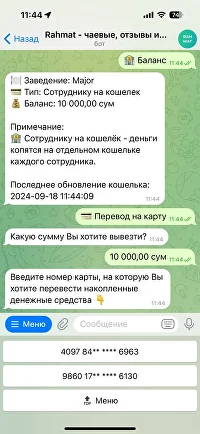 05
Choose the amount
Once the amount is chosen, the bot asks for the card number.
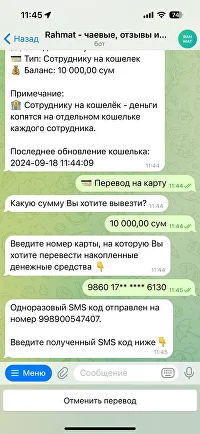 06
Enter the card number
The employee enters an Uzcard or Humo card number. An SMS code is sent to the phone number.
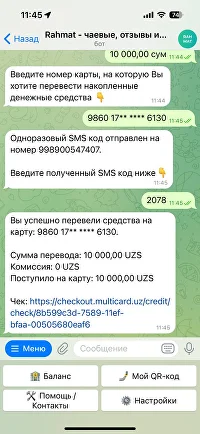 07
Enter the SMS code
The same code is entered in the bot, and the money goes to the card.
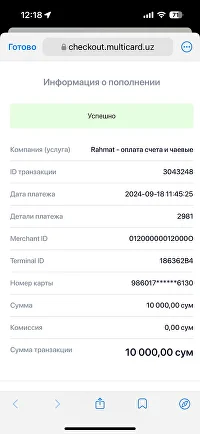 08
Transfer receipt
The bot sends a link to the receipt on checkout.multicard.uz.
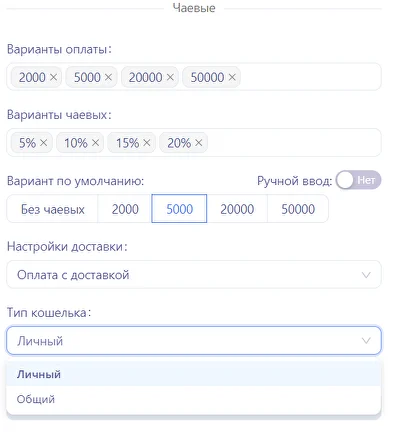
03 / Wallet types
A personal or shared
tip wallet.
The wallet type is set in the dashboard when editing a branch. Venues have two options.
- Personal: tips go to a specific employee’s wallet
- Shared: one wallet per branch; a first- or second-level manager withdraws the money
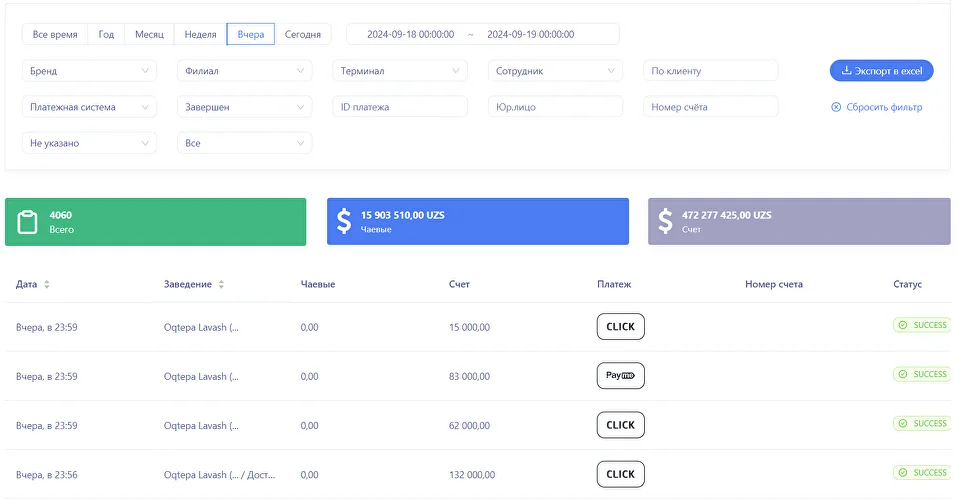
04 / Payments
The Payments page: bills and tips.
The Payments page lists all bill and tip transactions.
- Cancelling a transaction
- Filtering payments by period
- Exporting the selected period
- Payment details and the date the venue is reimbursed
05 / Cancelling a payment
Cancelling a payment
in two steps.
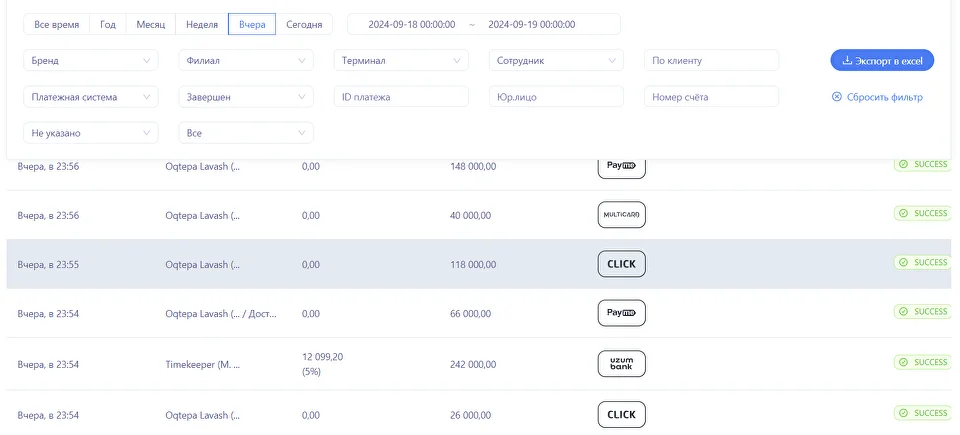 01
Select the payment
On the Payments page, select the transaction in the list.
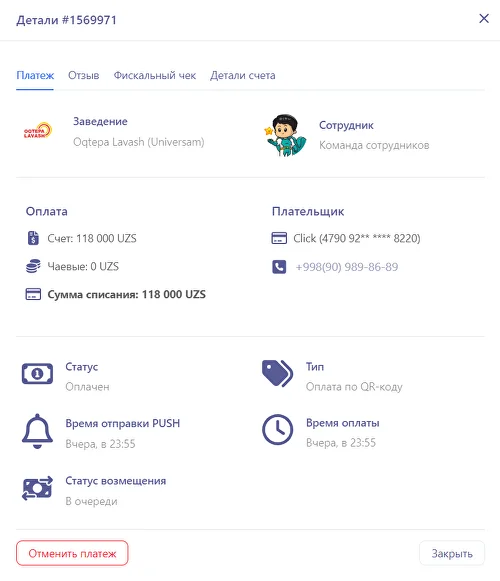 02
Cancel the payment
A window with the payment details opens. There the payment can be cancelled, and its details and reimbursement date checked.
Support
Dashboard questions
on 1865.
Requests to connect are made at open.rhmt.uz; advice is available on 1865.